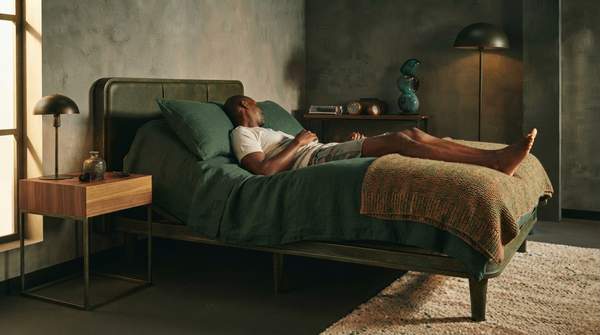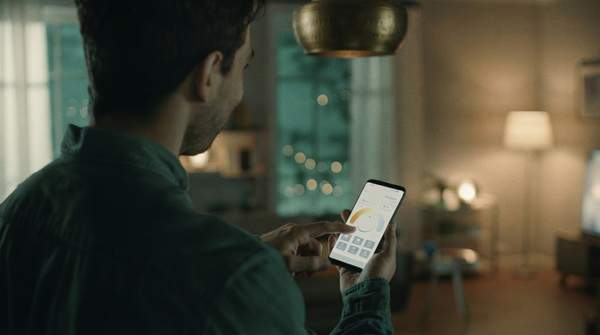
Here's the short answer: a smart lighting "scene" is just a saved combination of brightness and color settings that you can recall with one tap. Want a cozy evening? Dim, warm light. Need to focus? Bright, cool light. In this guide, I'll walk you through a simple framework for turning any mood or activity into concrete settings, then show you how to program and save it in your app.
Understanding Smart Lighting Scenes
Think of a scene as a recipe. Instead of adjusting every bulb by hand each time, you set the lights once, save the combination, and reuse it forever. As home automation installer Rob Marshall puts it, scenes are "pre-set lighting configurations that adjust multiple lights at once to create a specific mood or effect."
The examples write themselves. A "Dinner Party" scene might dim the lights and add a warm amber glow. A "Focus" scene does the opposite, brightening the room with cool white light. Smart Spaces Group, an installer of professionally fitted Control4 systems, describes the same idea: calming dim lights for movie nights, bright energizing scenes for morning routines — all controlled from your phone or by voice.
The beauty is the one-tap recall. You're not fiddling with three dimmer switches before every dinner guest arrives. You're pressing a button labeled "Dinner Party" and letting the house do the work.
The Core Elements of a Lighting Scene: Brightness and Color
Every scene comes down to two dials. First, brightness. Smart bulbs and dimmable switches let you adjust intensity to match the moment — dimmed to a warm, soft glow for a cozy evening, or cranked up for better visibility and concentration when it's time to work, as the team at Smart Home Worx explains.
Second, color temperature, measured in Kelvin (K). Lower numbers mean warmer, amber-toned light; higher numbers mean cooler, whiter light. The retailers' guide at LED Light Expert gives useful anchors for the home: around 2700K for a cozy, intimate feel; 3000K for slightly crisper light that still suits living spaces; and 3500K to 4000K where clarity matters, like kitchen prep and cleanup.
That's genuinely all you're manipulating. Brightness sets the energy of the room. Color temperature sets its warmth. Get those two right, and the mood follows.
Your Smart Lighting Scene Design Framework
Here's the framework I promised. Find your activity in the left column, and read across for the settings that support it. The Kelvin values below come from LED Light Expert's space-by-space recommendations and the warm-dim-versus-bright-cool pairing that runs through home automation advice from Alpha Automation and Smart Home Worx. Treat them as starting points to tweak, not mandates — your fixtures and tastes will shift them a bit.
| Activity / Mood | Brightness | Color Temperature | Purpose |
|---|---|---|---|
| Relaxing / winding down | Dim | Warm, around 2700K | Cozy, calm evening ambiance |
| Focus / work mode | Bright | Cool, 3500K–4000K | Alertness, visibility, and concentration |
| Intimate dining / gatherings | Dimmable | Warm, around 2700K | An inviting glow you can adjust to the mood |
| General living room | Flexible | 2700K cozy / 3000K for reading | Multi-use space that shifts with the evening |
| Kitchen tasks | Bright | 3500K–4000K | Clarity for prep and cleanup without harshness |
Notice the pattern: warm and dim go together for settling in; bright and cool go together for doing. LED Light Expert's own "pro move" for dining spaces shows how flexible this gets — 2700K bulbs in the chandelier, 3000K recessed fill, both dimmable "to control the mood for weeknights or gatherings." You can mix Kelvin values within one scene.
One note: this guide stays deliberately brand-agnostic, and it won't tell you which products to buy. It's about the principles you can apply in whatever smart lighting app you already have.
Programming Your Smart Lighting Scenes: A General Guide
Now the hands-on part. Marshall outlines the process in five steps, and it's simpler than you'd expect.
- Identify your needs. Think about the activities you actually do in each room. Movie nights? Desk work? Sunday dinners?
- Choose your lights. Select bulbs or fixtures that support scene creation — most smart bulbs do.
- Open the app. Most smart lighting systems have apps where you can design scenes.
- Experiment with colors and brightness. Play around until it feels right. Really — this is the fun part.
- Save it. Give the scene a name you'll recognize, like "Movie Night" or "Dinner Party."
Start with one room and one scene from the framework above. A living room "Cozy Evening" — dimmed, 2700K — is the classic first project. Once it works, the same five steps build every other scene in your home.
Automating Scenes for Enhanced Well-being and Convenience
Saved scenes are nice. Automated scenes are where the well-being payoff lives. Marshall's final step is to set schedules or triggers: a "Movie Night" scene at sunset, a bright kitchen scene when you start cooking.
Smart Home Worx's example scenes hint at how far this goes — their "Dinner Party" scene adjusts lighting to warm, inviting tones while starting muted background music, and "Work Mode" pairs bright lighting with a cooler thermostat setting to keep you alert. Those multi-device touches go beyond simple scheduling, though, and this guide sticks to the lighting basics.
Even staying simple, motion triggers and time-based schedules mean your warm evening scene can arrive on its own. You walk in, and the house is already winding down with you. That consistency — the same warm glow at the same hour — is what turns a gadget feature into a genuine evening ritual.
Empowering Your Home's Ambiance
You can confidently design and program custom smart lighting scenes to enhance your home's ambiance and support well-being. The framework gives you the settings; the five steps give you the process. Your measurable goal: create and activate at least one custom scene in your smart lighting app, resulting in a noticeable change in your room's mood or functionality. When you tap "Cozy Evening" tonight and the whole room softens in one motion, you'll know it worked — and you'll already be planning the next scene.
Sources
- Customizing Your Home’s Ambiance with Advanced Control4 Lighting Scenes — Smart Spaces Group
- How Smart Lighting Sets the Perfect Mood at Home — Smart Home Worx | Motorized Shades | Home Theater | TV Installation
- How to Choose the Right LED Color Temperature for Different Spaces - LED Light Expert
- Smart Lighting Scenes for Your Home — Alpha Automation